

To share company context across Claude, ChatGPT and Codex, connect each person's AI app to one shared Company Brain. With OrgSync, each teammate connects the app they already use, signs in as themselves, and their AI then answers from the decisions your company has shared, with citations. Nobody has to switch tools, and nobody has to paste the same background into every chat.
On our own team, people work in different AI apps every day. This guide is the setup I wish we'd had from the start.
Why your AI apps disagree today
Each AI app keeps its own memory, per person. So the same question, "what's our pricing for agencies?", can get three different answers from three teammates' AIs, each one confident. The fix isn't to make everyone use the same app. It's to give every app the same source of truth.
OrgSync connects to AI apps through MCP, the open standard these apps use to reach outside tools. Your company's shared decisions live in OrgSync, and each person's AI reads them as that person, seeing only what their role allows.
Before you start
- Someone creates your company in OrgSync at orgsync.co and invites teammates from Team. There's no per-person charge.
- Each person sets their role or work profile, so their AI knows what they do.
- Each person connects their own AI app. A connection works as that person, in one company.
Step 1: Connect each person's AI app
In OrgSync, open AI apps. It shows the exact steps and values for your company. In short:
Claude Code
Install the OrgSync plugin from Terminal, then type /mcp in Claude Code, choose OrgSync and sign in. The plugin teaches Claude how to use OrgSync and adds commands such as /orgsync:get-started.
Claude Desktop or claude.ai
Add OrgSync as a custom connector under Customize › Connectors, sign in, then add the OrgSync plugin under Customize › Plugins. On a Claude Team or Enterprise plan, a workspace owner adds the connector first.
Codex
Add OrgSync from Terminal, sign in, then add the OrgSync plugin so Codex knows how to use it. Start a new session and ask, "Get started with OrgSync."
ChatGPT
In the ChatGPT desktop app, add OrgSync as a custom MCP under Settings › Plugins, sign in, then install the OrgSync plugin from the Marketplace tab. Use the Work tab to reach OrgSync. Business, Enterprise and Edu workspaces can also connect at chatgpt.com.
The full, current steps for each app are on Help: Connect your AI.
Step 2: Bring in what you already know
An empty brain helps nobody. Run /orgsync:import and point your AI at what you already have: notes, docs, a pasted list of decisions. Or ask it to interview you with a few questions instead. Your AI prepares drafts; each one stays private to you until you approve it.
Start small. Five clear decisions that people often get wrong are worth more than fifty pages of notes. Good first candidates:
- Who your customer is, and who it isn't.
- Your current pricing and what's included.
- What you're building this quarter, and what you've said no to.
- How you describe the product in one sentence.
Step 3: Approve what becomes shared
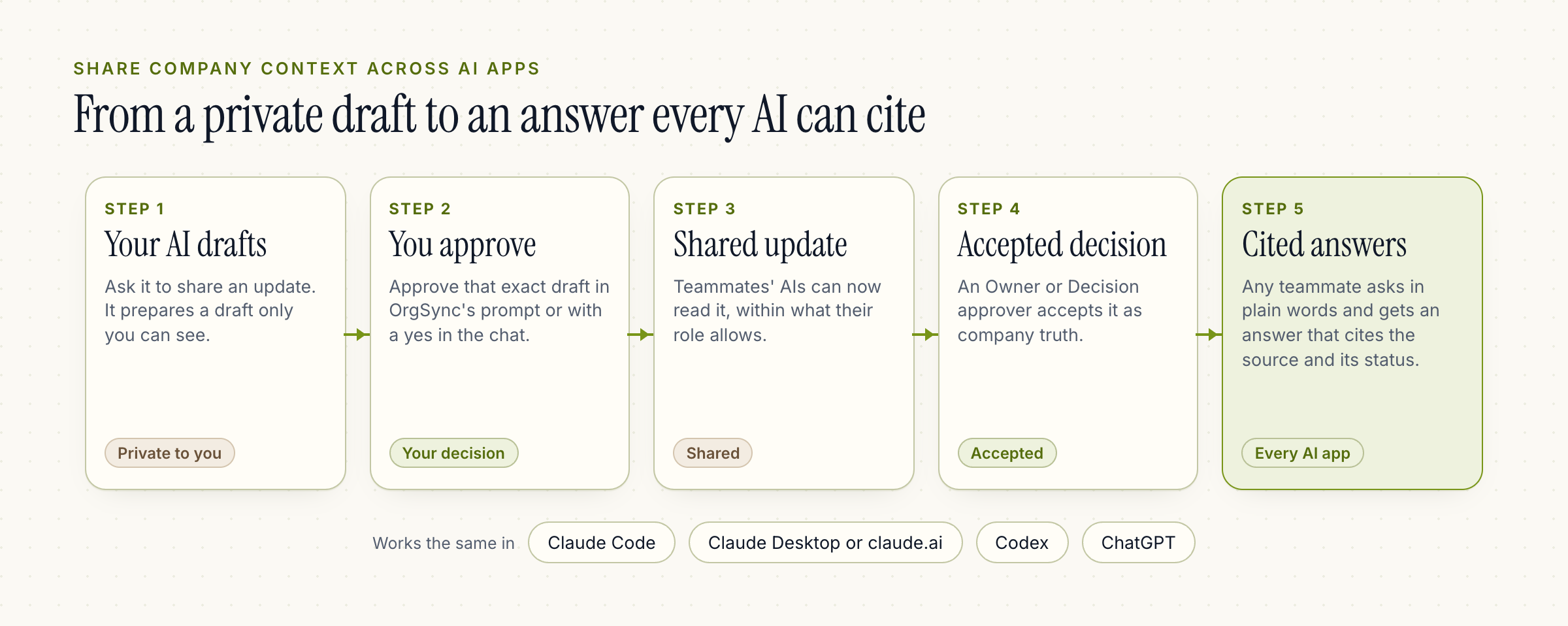
Nothing is shared until you approve that exact draft, either in OrgSync's own prompt inside your AI app or with an explicit yes in the chat. Owners and Decision approvers then decide which shared updates become accepted company decisions.
This is the step that makes the context trustworthy. Every AI on your team will repeat what's here, so a person decides what goes in.
Step 4: Ask, from any app
Now any teammate can ask their AI about the company in plain words: "What did we decide about agency pricing?" Their AI answers with citations that name each source, its status and when it was shared. A developer in Codex and a marketer in ChatGPT get the same answer, because it comes from the same decisions.
Each morning, /orgsync:today shows what needs you, what changed and the decisions that shape your work.
Step 5: Keep it current
Context goes stale unless someone tends it. Two habits keep it honest:
- When something changes, share the change. Ask your AI to share the new decision, or use
/orgsync:decide. If an existing decision is wrong, suggest a correction; it changes nothing until an Owner or Decision approver accepts it. - Run a weekly review.
/orgsync:reviewchecks in on your goals, shares the decisions you pick and sets next week's priorities.
Common questions
Do we all have to use the same AI app? No. That's the point. Each person keeps the app they like.
Can everyone see everything? No. Each connection reads only what that person can see.
What about our existing AI memory? Keep it for personal preferences. Use OrgSync for what the company has agreed.
Where is our data kept? See Security and data handling.
Next steps
- Help: Connect your AI has the exact steps for each app.
- Read what a company brain is for the thinking behind this.
- See plans and pricing. One plan covers your whole company.
Kaustubh Dhotre, Co-founder, OrgSync